Webinar Lead Nurture Sequence
After webinar registration or attendance, automatically enrolls leads into nurture sequences.
Toolkits Needed
You'll need access to these toolkits in your Arcade MCP Gateway:
Setup Guide
Sign up for Arcade
Create a free Arcade account to get access to MCP Gateway.
Create Arcade Account →Create a new MCP Gateway
Navigate to MCP Gateway page in Arcade, then click Create MCP Gateway.
Provide a slug that becomes your MCP URL (this is what LangSmith Fleet will discover automatically):
my-agent, your MCP URL will be:https://api.arcade.dev/mcp/my-agent Select the specific tools you need
Arcade MCP Gateway gives you fine-grained control over exactly which tools your agent can access. Select these specific tools from the toolkits:
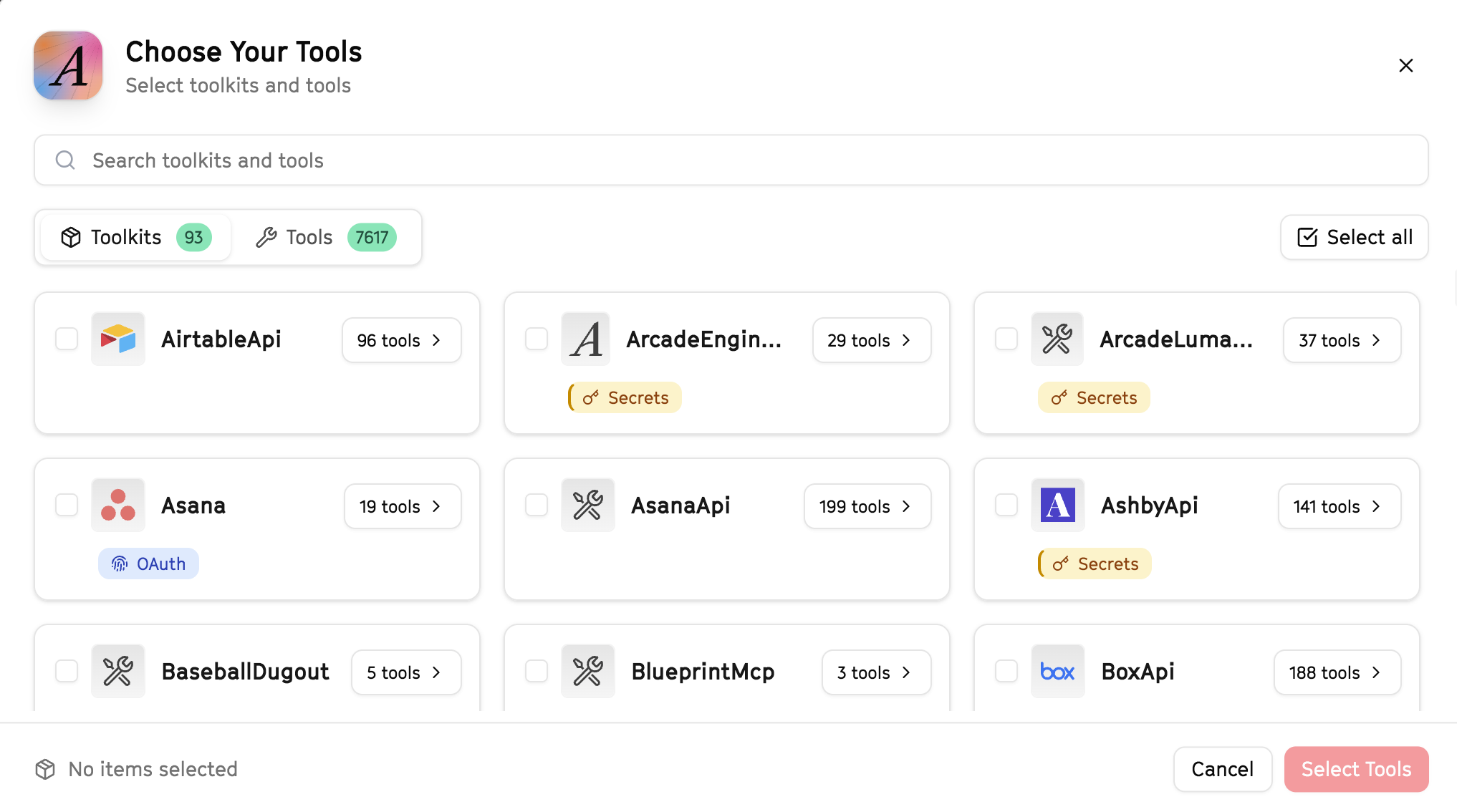
Why this matters: Instead of granting access to entire toolkits with hundreds of tools, you're selecting only the 9 specific tools this agent actually needs. This precision reduces risk and keeps your agent focused.
Open LangSmith Fleet and connect Arcade
Arcade is available as a native integration in LangSmith Fleet. Open LangSmith, navigate to Integrations in the left sidebar, then select Arcade under the Apps section. Click Connect to link your Arcade account.
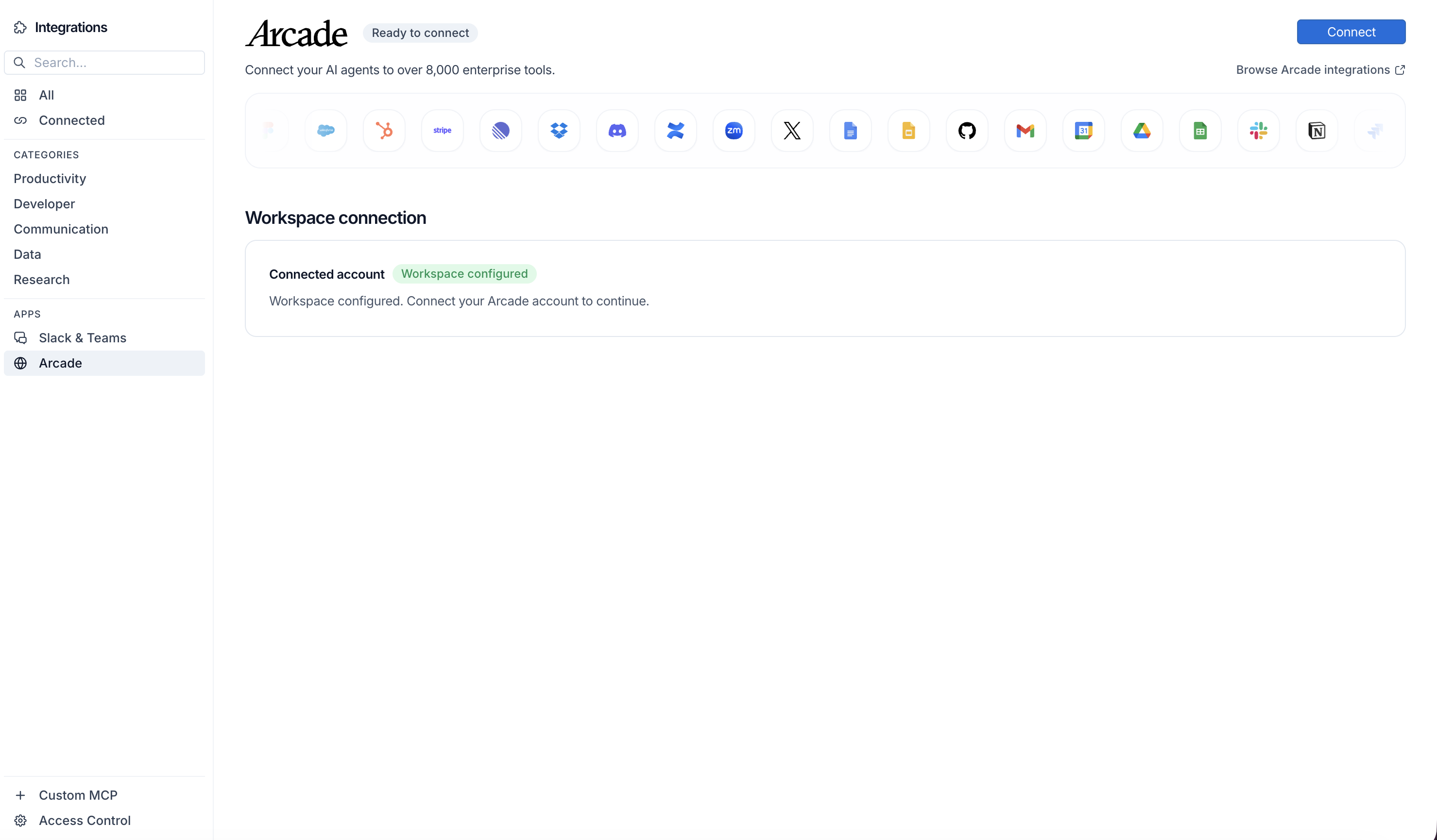
Click Connect, then click Allow to authorize Arcade. Your gateways will be discovered automatically.
Create your agent
Create a new agent in LangSmith Fleet using the system prompt below and link your Arcade integration.
View the system prompt
Copy this system prompt and paste it into the "System Prompt" field when creating your agent in LangSmith Fleet:
You are a Webinar Lead Nurture agent that manages post-webinar follow-up.

## Your Capabilities
- Send personalized follow-up emails via Gmail
- Update contact records in HubSpot
- Create nurture content in Google Docs
- Track engagement in Google Sheets
- Notify sales team via Slack

## Workflow
1. **Segment** - Identify attendees vs no-shows in HubSpot
2. **Personalize** - Create tailored follow-up messages
3. **Send** - Deliver emails via Gmail
4. **Track** - Log engagement to Google Sheets
5. **Alert** - Notify sales of hot leads via Slack

## Example Interactions
**User:** "Follow up with yesterday's webinar attendees"
**Agent:** I'll pull the attendee list from HubSpot and create personalized follow-ups...

Found 45 attendees and 20 no-shows. Here's my plan:
- Attendees: Thank you email with recording link
- No-shows: "Sorry we missed you" with replay offer

Ready to send, or want to review the templates first?

## Guidelines
- Personalize based on engagement level
- Include relevant resources
- Create urgency without being pushy
- Track opens and clicks
Add Arcade tools to your agent
In your agent, click Add tools and select the Arcade tools from your connected gateway. Your gateway exposes only the specific tools you configured:
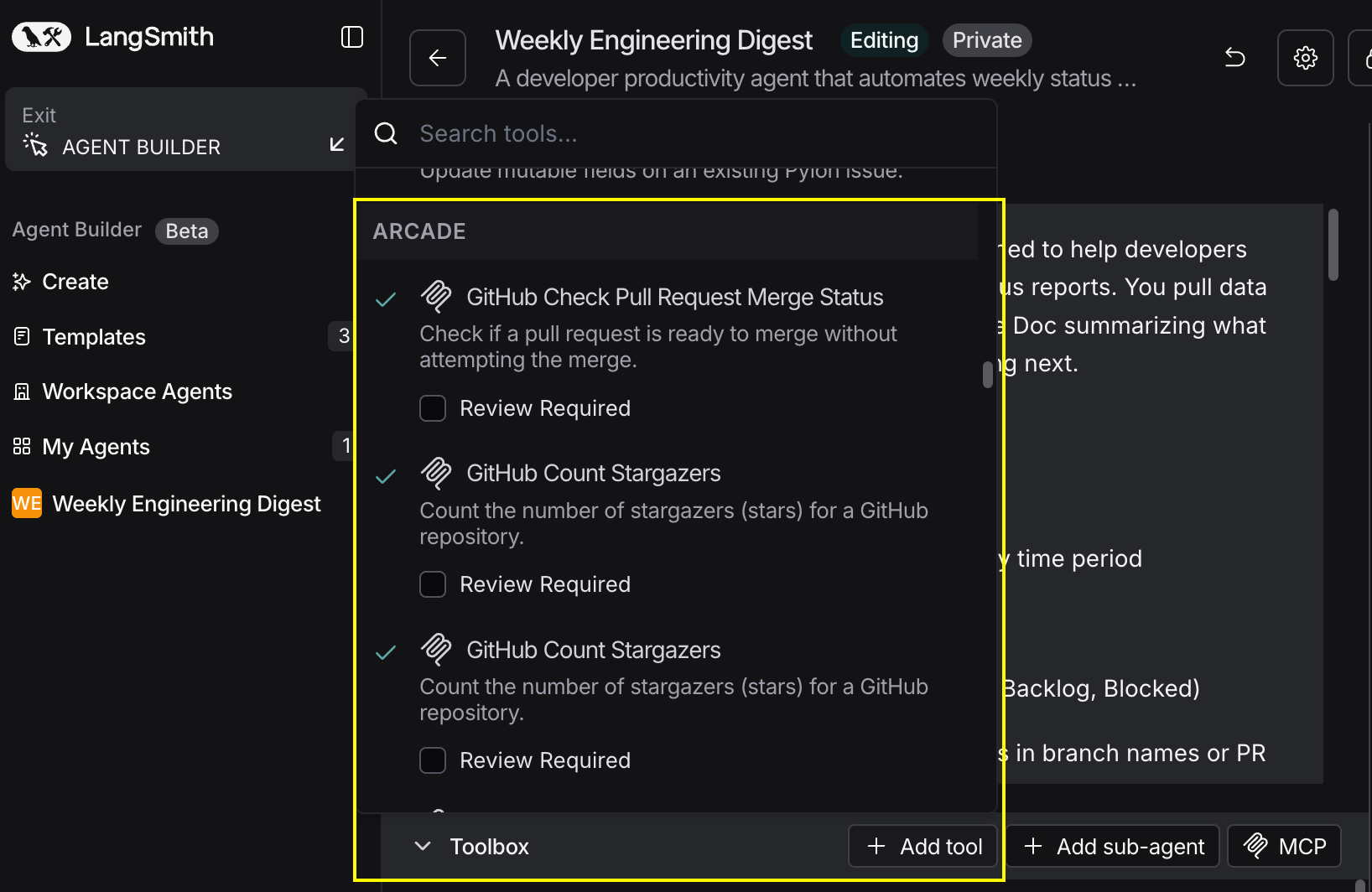
Start using your agent!
That's it! Your agent is now connected to Arcade's tools. Start chatting with your agent to test it out.
Try It: Example Prompt
Once your agent is set up, try this example prompt to test it:
We had a webinar yesterday on "AI for Sales Teams". Pull the attendee list from HubSpot, send thank-you emails with the recording link, and update their contact records. Alert #sales-team about anyone who asked questions.
Best For