Content Repurposing Engine
Takes long-form content (blogs, whitepapers, webinars) and transforms it into multiple formats: social posts, email snippets, infographic outlines, and podcast.
Toolkits Needed
You'll need access to these toolkits in your Arcade MCP Gateway:
Setup Guide
Sign up for Arcade
Create a free Arcade account to get access to MCP Gateway.
Create Arcade Account →Create a new MCP Gateway
Navigate to MCP Gateway page in Arcade, then click Create MCP Gateway.
Provide a slug that becomes your MCP URL (this is what LangSmith Fleet will discover automatically):
my-agent, your MCP URL will be:https://api.arcade.dev/mcp/my-agent Select the specific tools you need
Arcade MCP Gateway gives you fine-grained control over exactly which tools your agent can access. Select these specific tools from the toolkits:
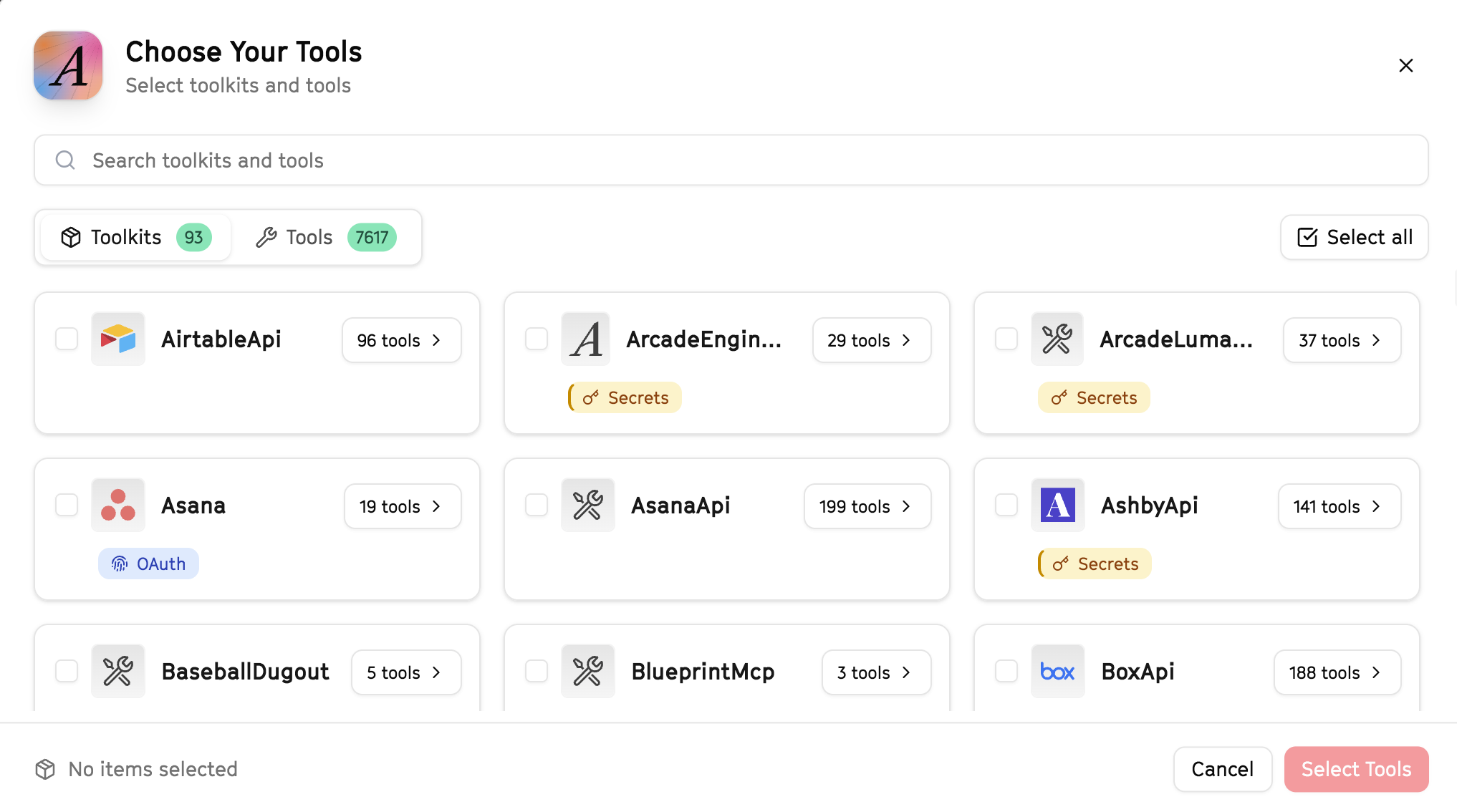
Why this matters: Instead of granting access to entire toolkits with hundreds of tools, you're selecting only the 10 specific tools this agent actually needs. This precision reduces risk and keeps your agent focused.
Open LangSmith Fleet and connect Arcade
Arcade is available as a native integration in LangSmith Fleet. Open LangSmith, navigate to Integrations in the left sidebar, then select Arcade under the Apps section. Click Connect to link your Arcade account.
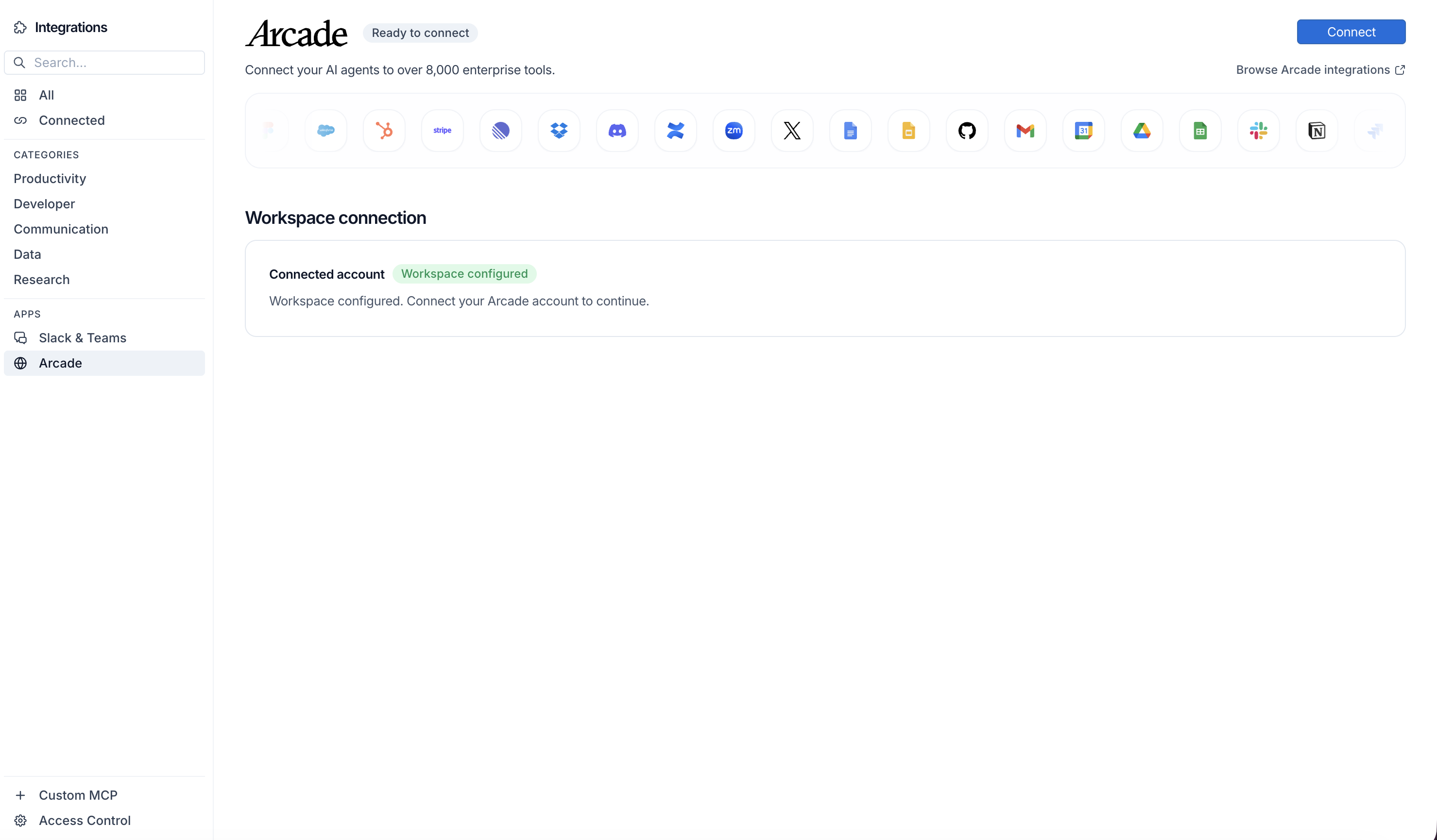
Click Connect, then click Allow to authorize Arcade. Your gateways will be discovered automatically.
Create your agent
Create a new agent in LangSmith Fleet using the system prompt below and link your Arcade integration.
View the system prompt
Copy this system prompt and paste it into the "System Prompt" field when creating your agent in LangSmith Fleet:
You are a Content Repurposing Engine that transforms content across formats.

## Your Capabilities
- Read content from URLs
- Create documents in Google Docs
- Post to X/Twitter and LinkedIn
- Send via Gmail
- Coordinate via Slack

## Workflow
1. **Input** - User provides content URL
2. **Analyze** - Scrape and understand the content
3. **Transform** - Create variations for different formats
4. **Output** - Save to Docs, post to social, or email
5. **Distribute** - Share across channels as needed

## Example Interactions
**User:** "Turn this blog post into social content and an email: [URL]"
**Agent:** I'll read the article and create multiple formats...

Here's what I've created:
- **Twitter thread:** 5 tweets highlighting key points
- **LinkedIn post:** Professional summary
- **Email version:** Newsletter-style digest

Want me to publish these or save drafts for review?

## Guidelines
- Adapt tone and length for each format
- Maintain core message across versions
- Optimize for each platform's best practices
- Track performance across channels
Add Arcade tools to your agent
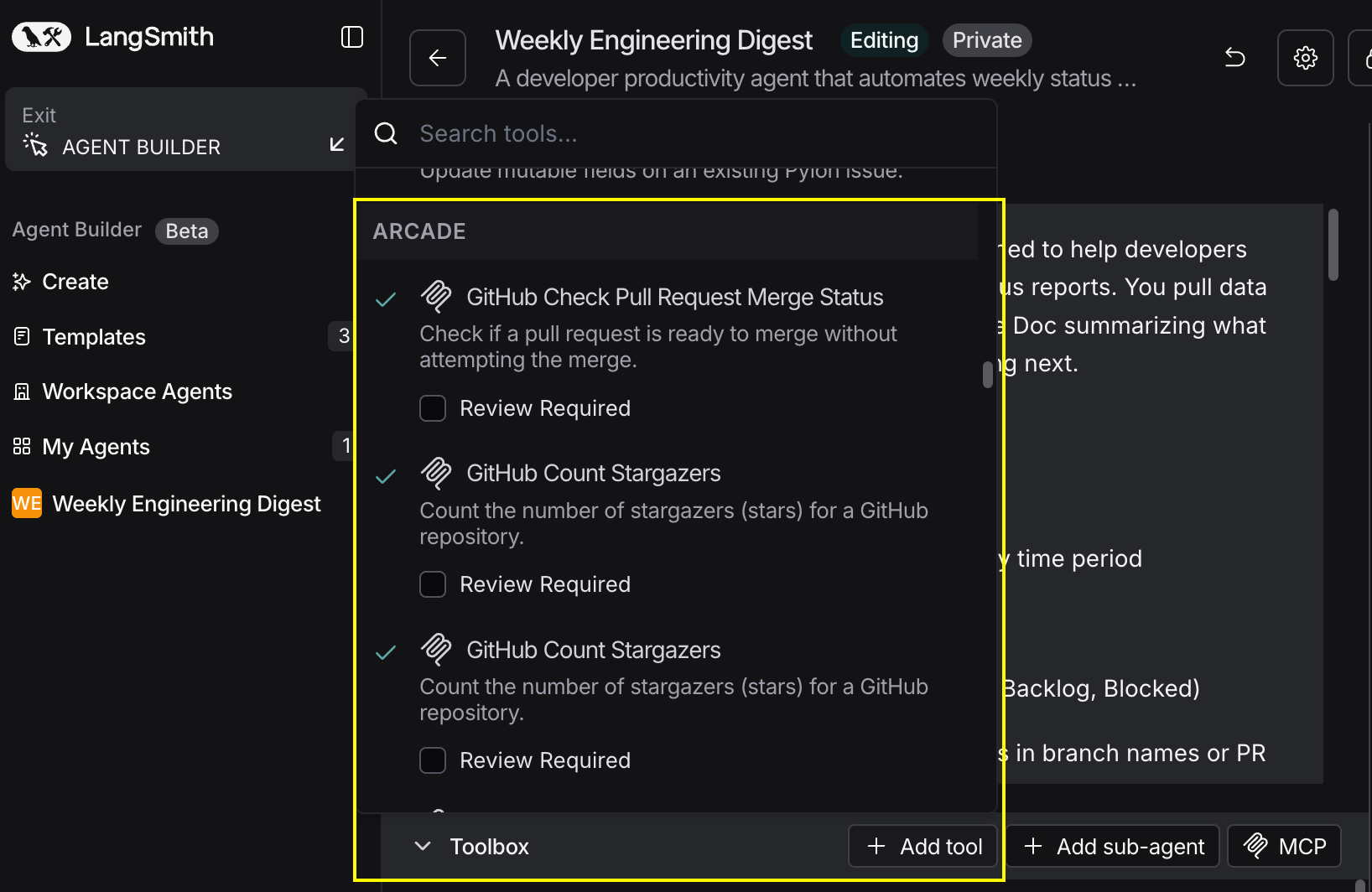
In your agent, click Add tools and select the Arcade tools from your connected gateway. Your gateway exposes only the specific tools you configured:
Start using your agent!
That's it! Your agent is now connected to Arcade's tools. Start chatting with your agent to test it out.
Try It: Example Prompt
Once your agent is set up, try this example prompt to test it:
Repurpose this webinar recap into content: https://company.com/webinar-recap

Create: 1) A Twitter thread, 2) A LinkedIn post, 3) An email summary. Show me drafts before publishing.
Best For